Posts in "Photos"

OpenDNS + DynDNS + DNS-O-Matic

I finally got around to setting up a few services on my Mac related to dynamic DNS hosting. Having done so, I'm asking myself why I didn't do this long ago.

So, what is dynamic DNS? Here's a brief and imperfect overview. Let's start with DNS, or Domain Naming System. This, broadly speaking, is a service that translates hostnames into numbers that a computer can understand, and vice-versa. It's DNS that allows you to type 'www.viewfromthedock.com' instead of a hard-to-remember number like 69.89.31.161 (an IP address). Your computer has an IP address. All the sites you visit have an IP address. Everything that accesses the internet has an IP address.

The thing about IP addresses is that, for a variety of reasons, there are only a finite number of them to go around.

This affects you directly. Because of this scarcity, your Internet Service Provider (ISP) only has a finite number of addresses to pass out to all the computers using that ISP that wish to access the internet.

The result of this shuffling act means that the address of your computer is changing all the time. That makes it hard to get back to your computer if you are remote and need to connect to, say, grab some important documents. Enter the dynamic DNS hosting service.

OpenDNS
The folks at OpenDNS took a look at dynamic DNS hosting and asked 'What else could we do with this?' The result is a service that does a number of interesting things. OpenDNS does not provide you with an unchanging, easy-to-remember hostname (actually, it does track your ever-changing IP address, but only for its own purposes). What it does do is serve as your primary DNS server (instead of the DNS server used by your ISP). You don't need to install any software. You simply need to point your computer (or router) to the OpenDNS DNS servers. Read on if you're not sure why you should care.

DNS-O-Matic
This is a service owned by OpenDNS which basically does one thing: it transmits your current IP address to whatever services you are using. In my case, it ensures that both DynDNS and OpenDNS get my latest IP address from my ISP.

So what do I get out of this?


- With DynDNS, I can now use my user-created hostname to help me remotely access files on my Mac using SSH (Secure Shell). If I didn't have DynDNS, I would not know my current ISP-assigned IP address. With it, I always do.

- With OpenDNS, I get a big boost in speed and reliability when surfing the web. In my case (using Comcast), I would often type in a site address and it would take a bit of time for the page to load. Sometimes, nothing seemed to be happening at all. With OpenDNS, I've experienced a noticeable difference in speed, and I've experienced no delays in page look-ups.

- OpenDNS also offers several other added features that make it very worthwhile. Essentially, they've taken a basic service (dynamic DNS) and built in a bunch of extra useful stuff built around it. With this service, I can block access to certain types of sites. I get an added layer of built-in phishing protection. I also get sophisticated error-checking (for those times when I type in 'cmo' instead of 'com,' for instance). For those times that OpenDNS can't quite figure out what I'm looking for, the service offers helpful suggestions. I can also create shortcuts (e.g., I created one for this site that enables me to enter 'vfd' in the browser instead of the full web address). Finally, I can view stats related to all of the visited domains and IP addresses accessed through my router.

- DNS-O-Matic, finally, is a simple service that ensures that DynDNS and OpenDNS always have my latest IP address. If you don't use these services, you may choose to sync your IP address with a whole slew of other similar applications as well. I opted to use this service in lieu of installing the DynDNS client software on my Mac.

All three of these services are currently free. It takes a little effort to set it all up, but it's worth it. If you have no need for a consistent hostname for remotely accessing your Mac, then you may not need a service like DynDNS. However, OpenDNS is worth the effort for the speed and reliability boost alone.

One final note: OpenDNS collects information about your surfing habits, so be sure to check out their privacy policy.


The Spectrum of PIM


Long ago, I began an information organizer review series. I started out strong. I posted a nice little intro piece. I knocked out the first review in the series. Then it utterly unraveled for two reasons.

First, Alan over at Metadata weighed in that VodooPad shouldn't be in my review group (which included Yojimbo, DEVONThink, Together, and EagleFiler).

He followed up that thought with a post on his blog in which he suggested we divide info organizers into two distinct categories: those that help us organize existing data, and those that help us create new data (or, as he restated at the end of his post: "creators let you manipulate data, whereas organizers let you manipulate metadata").

It's a great article, and the foundation for this post. I agree with much of what he said, but as you'll see, my model differs a bit from his.

I've concluded he was right about VooDooPad: you can organize existing documents with it, in the same way you can use Word to store a list of all of the books you own. But why would you? Other apps are far better suited for the task.

So, as I was pondering this, I was offered a new job. And that's the second reason for the long delay. As I've mentioned here many times now, I moved. I'm still recovering (and unpacking).

Now I'd like to resume the discussion. This is an attempt to build upon Alan's post by proposing that we present organizer apps on a spectrum. I want to reemphasize that, in the spirit of collaboration, this draws heavily on the ideas from Alan's post. Go read that first.

So here it is. There are three main categories of info organizer applications that form the spectrum of PIM:

1. Finders

These applications strive to serve up something better than Apple's Finder to archive, organize, and search through your important documents. Apps in this category tend to focus on giving you powerful metadata tools to help you find what you need and organize your existing documents/files (thanks, Alan). Examples are Leap, PathFinder, EagleFiler, Together, DEVONThink.

2. Creators

These apps focus on providing a better notebook experience. They provide a central repository to create and collect notes, ideas, snippets, multimedia clips, and (to a lesser extent) existing documents. Simple interfaces, quick entry, and rapid search are emphasized. Examples are Yojimbo, Evernote, Notebook, VooDooPad

3. Visualizers

These applications focus on providing a better creative space in which to help you plan projects and gain insight into your data. Examples are Curio, Tinderbox, OmniOutliner

Since many of the functions of these applications overlap each other, I think it's helpful to view them on a spectrum. We can then perhaps get a better sense of where on the spectrum a given app fits. The screenshot on the right, for example, shows where I think DEVONthink fits on the continuum.

The fine print


Now a word about info organizers, info managers, PIM, or whatever you want to call these kinds of apps. I've had so many people ask for recommendations on applications that fall in the info organizer realm. I think there are no clear answers. Part of the problem is also a great strength of the Mac platform: the glut of third party app choices. And part of the problem is that many of us aren't really sure what we want.

The explanations (read: marketing) provided by many Mac 'info management' apps don't help much. So there it is: we have too many choices, the essential functions of these choices are not well enough defined, and the reason the definitions are broad and vague is because the apps themselves offer solutions to a very wide range of info organizational problems.

Some organize existing data, some help create new data, some help visualize connections amongst data ... and most do all of these things to some degree.

We know that most (or, at least, the best) info organizers do a lot more: they help us find things more quickly, make connections between disparate items, and come up with new ideas. They aim to help us solve uniquely modern problems: to fight information overload, to cut through clutter, to combine the super powerful with the super simple interface, to help us make unforeseen connections, and to serve as a nesting place or (better yet) breeding ground for our thoughts.

If we have a glut of PIM apps, it's because we have a real need to manage the wash of information that is cluttering our lives. With our computers serving as the repository for all of our info, data, thoughts ... we clearly need to find a way to pull it all together. To make it perform for us. That's the new paradigm. Some focus on organization, some on creating new info, and some focus most on tying together all stuff into some sort of coherent package so we can find our way forward.

Which you choose will depend on what you need. Ultimately, I think the winners will not necessarily be the ones that pull all of these elements together in one application. Rather, I think there is room enough for lots of variety. Our challenge, then, is to pick the right apps to do the job, but to pick the ones that do the job in a way that is natural for us. While it's true there may be too many options out there right now, that's the nature of competition. The best ones usually stand the test of time.

I plan to use the spectrum framework as I return to reviewing some specific applications. In the spirit of choosing apps that clearly fall within a 'band' of the spectrum, my review choices will change from the original lineup (I'm still deciding which ones I want to tackle).

When I'm done, I'm considering placing all the major info organizer apps (not just the ones I reviewed) on the spectrum with the aim of helping people sort through all of the choices.

I'll close with a word on the acronym PIM and the phrase 'info management.' I think they are both hopelessly broad and meaningless. Every program used on a home computer is, in a sense, a personal info manager. Sadly, I'll probably keep using PIM out of habit. After all, spectrum of PIM sounds much better than spectrum of info organizers.

Some clever person should devise a better term. I kind of like 'personal content assistant,' used by the folks over at Eastgate Tinderbox. Or perhaps we could use MIP: making information perform.

ProQuo

ProQuoWe get our furniture and other household goods from Hawaii this Friday. All of our stuff will finally join us here in Maryland…and I will soon once again be able to sit at a proper desk in a proper chair to update this site.

Now that we have a new mailing address, I decided to start off right by stopping the influx of junk mail to our new abode before it even starts.

I’m using a free online service (still in beta) called ProQou, a one-stop source to turn off all of those unwanted mailings.

It’s easy to use. Time will tell how well it works. If you get a lot of junk in your mailbox, check it out.

MacRabbit Espresso

EspressoGrab a cup of coffee. We already have Bean, the excellent and free rich text editor. Soon, we will have Espresso from MacRabbit, creator of the best-in-class CSS editor, CSSEdit.

Reading through the features, it looks like Espresso will be a hybrid application that combines many of the coding-friendly features of BBEdit or TextMate with the great UI and navigation of CSSEdit (to include CSSEdit’s live preview functionality). It also offers built-in publishing tools. It is geared towards web development, so it will surely be a strong Panic Coda alternative as well. Can’t wait to test it out.

I’ve signed up for the beta.

LibraryThing and Delicious Library

Today is the Ides of March, the day of Julius Caesar's untimely demise in 44 B.C. What's does this have to do with the Mac?

Well, I first thought of Caesar. Then I thought of Colleen McCullough's excellent Masters of Rome historical fiction series, which I recently finished reading. That got me thinking about books in general. Then I thought about Delicious Library and LibraryThing, two excellent bookish tools you can use on your Mac. Hence, this post.

Delicious Library

Delicious Library, from Delicious Monster, is a cataloguing tool that is perhaps the most ingenious use of the Mac's built-in iSight I've seen. Scan the barcodes of your books with your iSight (or any webcam or connected FireWire digital video camera) to create a digital catalog. Then browse through your new digital collection. You can synch up your catalog with your iPod, print out your catalog, and get personalized recommendations based on your collection. If you regularly lend out your books to friends, you can use the tool's loan management system to keep track of who has what. I can't put my finger on it, but I find it oddly enjoyable to scan barcodes on my Mac. Beyond being fun to use, it's a great inventory tool.

LibraryThing

LibraryThing is a web-based social 'book club' with a user-based catalogue of 24,000,000 books and growing. Wow. Create a free account to get started, enter some books from your library, write a book review, join a discussion group, get some recommendations based on your catalog. You can choose to add just a few books that you most recently read, or enter your entire library (if you enter more than 200 books, you will need to pay a modest fee). Or just surf around to see what others are reading. I could spend days on this page alone. The strength of this tool is its depth of information: pick a title and check out the book info and social info pages to see what I mean. I don't think you'll find better, non-commercial info about a book anywhere on the web. If you really like books, you owe it to yourself to check this out. It's a great discovery tool.

More Connections

By the way, the series of connections that led to this post led me to think of James Burke. I used to love reading his Connections column in Scientific American (he is probably most well-known for his excellent BBC television series). Burke specializes in tracing the interconnectivity of things: how events and inventions in the distant past lead up to the modern day. The connections he makes can be surprising (an example from the TV series: Burke shows how a test of gold’s purity 2500 years ago leads to the atomic bomb).

Check out the James Burke Institute Knowledge Web project — I've had this site bookmarked for years awaiting it's launch. From the Knowledge Web site: "it will soon be an interactive space on the web where students, teachers, and other knowledge seekers can explore information in a highly interconnected, holistic way that allows for an almost infinite number of paths of exploration among people, places, things, and events."

N: the way of the ninja


I accidentally discovered a great Mac-compatible game today, and ended up losing a whole afternoon of productivity.

Here’s what happened. I use LaunchBar to quickly access programs on my Mac. This afternoon, I typed the keyboard shortcut for LaunchBar (-space bar), typed ‘n,’ and then hit return. This is my two-second method to launch NetNewsWire. But I must have misfired, because LaunchBar never opened.

Instead, I inadvertently typed ‘n’ in the address bar of FireFox and hit return. This accident loaded an intriguing page for something called ‘N’ from a company called ‘metanet software.’ There was little on this page, save for a link that said ‘Come and check out N’s new home, at The Way of the Ninja!'

Unable to resist a link with the word ‘Ninja’ in it, I clicked. What I found there was a free Flash game for Mac and PC. Of course, I downloaded it and fired it up. To my surprise, I had stumbled upon the coolest lightweight free game I’ve seen in a long time. The graphics are simple, but the physics simulation is really something to see. This game is beyond addictive. N may be old news to gamers out there, but it was news to me.

Give it a try, if only to watch how smoothly and elegantly the little stick-figure ninja moves around the game space (and explodes spectacularly, employing what the developer’s accurately label ‘bitchin’ ragdoll physics').

I had intended to restart work on my PIM review series this afternoon…sigh.

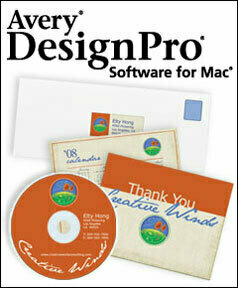
Avery offers full-featured, free DesignPro

Avery DesignPro

Avery, the office product and label-making company, now offers a free Mac application called DesignPro to help customers design everything from labels to T-shirts to CD art. This is the classic 'give away the razor and charge a premium for the razor blades' marketing model: you get the free software, but to use it you will need to buy custom Avery packages to cram into your inkjet printer.

Of course, I had to try it.

First, some discussion about the software package is warranted. To get it, you must register. I always find this a bit off-putting, but I dove right it. Hey, it's free. Then I proceeded to the download, which is a jarringly-large 232 MB file. This worried me somewhat. Why on earth was it so large? Proceeding to the installation, my worries grew apace. You put this package on your system via an installer that requires your admin password, which is indication that it's (at a minimum) going to put stuff in your main Library folder. Ok, but what's going to go there? I proceeded with the install, expecting some sort of indicator of what it installed and where it put it. I got nothing of the sort.

In an attempt to figure out where all those megabytes went (the app itself is only 8 MB!), I used AppZapper, a great little uninstaller program that gets rid of all the odds and ends a program typically leaves behind. This is a lazy method I sometime use to see what is installed where for a given package. When you drop a program into the AppZapper target window, it lists all of the program components it will uninstall (including the path of the files).

When I did this for DesignPro, however, it only found about 8MB of data to uninstall: a preference file and the main application from the app folder. Ok...so where were the hundreds of megabytes of data I just installed? I suspect that this is not the fault of AppZapper; my guess is that it's tied to the unique installation process of Avery DesignPro.

I then completely deleted the program and reinstalled it, hoping to get some clues from the DesignPro installer by paying closer attention this time around. Alas, it was to no avail. The only noteworthy option I could find in the installation process was a 'customize' prompt within the installer. This option presented me with three choices (meaning I could choose to install or not install three different components by checking a box). The choices: the DesignPro application, a QuickLook plug in, and 'resource files.' No path information was presented. Oddly, each selection displayed as 0 bytes in size regardless of whether the box was checked or not. And there was no indication of what the 'resource files' were and if I really needed them. Not too helpful.

Finally, after the reinstall, I decided to manually search through my Library folders to discover where the application installed its bits and peices (Spotlight, in case you're wondering, did not offer up any clues about the locations of the mystery files...although, in retrospect, I suspect it would have if I had refreshed the index).

Turns out that this app installs in a few locations: your main Library in a folder called DesignPro (which contains about 318 MB of data) and in your user account Library in a folder called DesignPro (which is about 7 MB). The user account library contains a sqlite database, by the way. I'm not sure what the app is storing there, though. I created a few labels and saved them, and the sqlite database remained the exact same size.

When you create a project and save it, it is placed by default in your documents folder. And if you open up your projects, it opens up in the app as expected. I tried out QuickLook on one of these documents, and it does present a preview of the project as advertised.

The moral of the story is this: if you want to delete this application completely, there is an entry in your main Library and your user account Library labeled 'DesignPro.' There is a preference (plist) file located in your user account Preferences folder, as expected. And there is the main application in your Applications folder. I thought this would be handy to pass on since the data that AppZapper missed was over 300 MB in size).

Most of that data is nothing more than templates and clip art. It would be nice to have a choice to NOT install this 'extra' stuff. I suspect this alone would decrease this very large package down to a much more reasonable 20 MB or so. I would also prefer the option to install this app in one user account only. I don't want to install it system-wide.

One thing is certain: if I start to experience weird system behavior and bugginess, at least I know where to start. My first step will be to delete this app.

At any rate, DesignPro seems to work just fine so far.

So what does it do? It helps you create labels of every imaginable shape and size, business cards, name badges, cards, T-shirts, CD/DVD labels, photo badges and more. You can choose from what appears to be about million Avery templates and create a quick design from a template (or create your own design). There are, in fact, over 1,300 template designs and over 2,000 clip art files from which you may choose.

DesignPro handily allows for data merging from Apple Mail and Address Book. It allows you to import images from iPhoto and import playlist data from iTunes for media projects. My initial take is that this is a full-featured product that may come in very handy for designing and printing simple projects using Avery standard labels. As someone who does not use MS Word (I use Pages), it's a welcome addition to quickly create mailing labels, badges, or other sticky-backed print jobs with ease.

Having said that, I would not say that this is the easy-to-use and intuitive Mac user experience claimed by Avery. It will take some getting used to. The user interface is odd. It has the weird feel of a ported Windows application haphazardly mixed with only a few familiar Mac OS elements and controls. It is confusing. It is also packed to the rafters will gratuitous clip art, templates and special effect options which are hauntingly reminiscent of low-cost commercial print packages I recall from my Windows days. But, hey, it is free and it does do the job. It's worth a look.

On Things, RapidWeaver

1. Things integration, tagging

Things
Cultured Code's Things is slowly and methodically nearing release — something I suspect many people eagerly await (or not, considering we now get to use the Beta for free!). Last saturday, Cultured Code released a small version update with a big new feature: system-wide To Do integration. Enter a To Do in Things, and it's instantly in Mail and iCal. It's a significant step in the evolution of this task manager. It's been enlightening to watch this app progress via the updates and the Things blog. The developers are clearly focusing an extraordinary level of effort to get this right, and it shows. I can't wait to see the companion app for the iPhone/iPod Touch due out at the end of June.

I received a comment this week concerning my original (and aging) Things review. I questioned the scalability of Things in that review (i.e. ability to manage hundreds of To Dos), and reader Mark countered that Things scales just fine provided one develops a good tagging system. I think this is largely true — more so as I've become a better tag manager and better versed in how to use Things.

The trick, then, is to develop a system of tagging that works. If you have a good tagging structure for Things, you can share it on the Things wiki (on the Real-world tagging examples page). There are two useful entries there to help get you started. Hopefully more tagging gurus will share their ideas and solutions. For more on tagging, check out Ian Beck's TagaMac site (particularly his intro to tags).

By the way, wouldn't it be nice to have a dedicated wiki for community-contributed tagging solutions, usage examples, and tips for all Mac apps that support the venerable tag?

2. RapidWeaver 4 first impressions

RapidWeaver 4
You may have heard that RealMac Software's RapidWeaver 4 came out this week. The most noticeable difference in this Leopard-only upgrade is the user interface, but there are also some significant under-the-hood improvements. If you are upgrading from an earlier version, ensure you update your third party plug ins first, then install the upgrade.

The new interface meshes well with the 'Leopard look' and is sleeker and easier to look at. It also includes a far amount of eye candy (e.g. black pop up windows, iconic representations of your files flying past during file open and upload). In short, it looks good. Note to RapidWeaver: I don't need to see each file loading when I start up RW. Just show me the progress bar. All those file icons whipping past is a nice use of Core Animation, but it's superfluous. Same goes for the file upload progress indicator.

I like the new toolbar that runs across the top of the app. At first, I was lamenting that I could not customize the shortcuts on the toolbar. Then, upon further inspection, it dawned on me that everything I need is already there. Good design.

The left-hand sidebar icons that represent individual pages of your site are now easier to recognize. RW pages are easy to pick out, as are third party plugin pages (e.g. a Blocks page now looks, appropriately, like a big yellow block).

One thing I don't like is the 'Add a new Page' view in the UI — it looks pretty, but I can't see the version number of my plugins as I could in earlier versions of the app (I tried clicking on the plugin name, as I would in Finder to reveal a long file name, but this had no effect). This used to be an easy way to see if I had the most current plugins installed.

There are now four new themes. You can now search through your themes or filter them (based on RW version, or if they originated from a third party). I like this. The one minor problem I've noticed is this: if I change the theme view to display smaller icon sizes, it doesn't stick. Once I close the document and open it up again, the theme previews are once again set to the default size (which are a bit too large).

One of the biggest changes is the adoption of a new file format based on standard XML. This is good news for people with very large sites, and good news for third party integration possibilities. I can vouch for this: publishing is dramatically speedier.

Be sure to check out the new Extras folder in the download. It includes a well-designed new PDF manual, the SDK for Theme development, and an assortment of web badges to add to your site.

I'm quite happy with this update, although I could not find a changelog anywhere on the RW site that clearly delineates what's new. I'm sure it's there somewhere.

And speaking of the RW website, it also received a major refresh (RealMac does this with each major release, offering up their previous site design as a new RW template).

The RapidWeaver forums have also been totally revamped. There is now a main community discussion section, a technical support section (which is now the primary means to get technical support for RW), and community forums in various languages other than English. A note for people who were used to the old forum: look for the search function inside the categories. It looks good, but I was disappointed to see that my account indicates that I've not made any posts (i.e. it appears my account was reset with the new launch. I don't know if other users face the same situation).

Delicious Library 2 Hits the Streets

Delicious Library

Delicious Library 2 is now out. DL offers a novel way to catalog your books, movies, music, software, toys, tools, electronics and video games using your built-in iSight as a barcode scanner. If you’ve never used it, give it a try. It’s a great tool to catalog your stuff. It makes it easy to track who you lent your possessions too. And it’s an invaluable tool for insurance purposes (take it from someone who moves frequently — it’s worth the price of admission for this use alone). This is one of those applications you point to when people ask why you use a Mac.

If you own an earlier version, there are many, many new features to check out that make this a worthy upgrade. A new license is $40, an upgrade is $20. Those who bought the last version before this update (version 1.6.6) will get the upgrade for free.

The Phoenix has Landed


Congratulations to the team behind the successful landing of NASA’s Phoenix Mars Lander this weekend. In the coming months, the Lander will send back data that will hopefully answer questions about the past and present climate of Mars, the Martian arctic’s ability to support life and the history of water on the planet.

Here are some different ways you can follow the Mission on your Mac:

1. Phoenix Mars Mission website


This site is, as you would expect, the primary source for the latest images, video, news. There is some great blog content here, too. As an aside, check out this CIO article about the behind-the-scenes challenge of serving up web content for the mission in near-real time to tens of thousands of people at once. It’s especially impressive considering that the imagery content is streaming in from millions of miles away.

2. Twitter with the Phoenix


Yes, even the Phoenix Mars Lander has a Twitter account. This is a convenient way to get regular updates — and the spacecraft is even responding to user questions (the tweets are written in the first ‘person’).

3. Visit the Mission on Second Life


And, yes, there’s also a Second Life site for the Mission.

4. Mac screensaver, widget


You can download a couple of Mac freebies over at the Phoenix Mars Mission site. The Mac screensaver features current imagery that auto-updates each time it is launched. The widget provides current Martian weather data.

5. Get the iTunes podcast


There’s also a Phoenix Mars Mission podcast hosted by the University of Arizona. This is the first time a public university has led a Mars mission.

I’ll leave you with an interesting fact: there is a DVD fastened with Velcro to the Phoenix Mars Lander. It’s called Vision of Mars, and it’s a compendium of Mars-related text, art, and radio broadcasts from the 19th and 20th century compiled by the Planetary Society. It also contains 250,000 names of Society members and space exploration enthusiasts. According to the Society, it’s “a message from our world to future human inhabitants of Mars.” The disc, billed as the ‘first library on Mars,’ is reportedly the most expensive DVD ever made. It’s comprised of silicon glass and is designed to last for 500 years.

If it were up to me, I would have attached a Nintendo Wii.